
STEP 1: Set up a Preference (Parent)
Understanding Key Terms:
Preference (Parent): The main option category.
Sub-Preference (Child): The specific option details within the category.
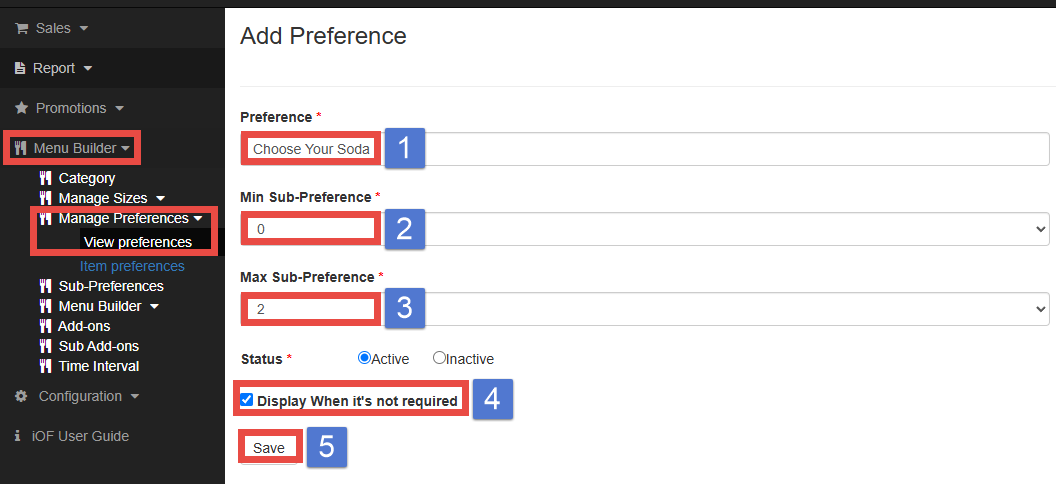
Navigate to Menu Builder → Manage Preferences → View Preferences.
(1) Set the Preference Name (option category).
(2) If you enter 1 and more, selecting this preference becomes mandatory (Required).
If you enter 0, selecting this preference is optional.
(3) Define the maximum number of selections allowed.
(4) If the checkbox is unchecked, the preference remains collapsed (hidden) by default. Required
preferences are always expanded (visible). (See image below.)
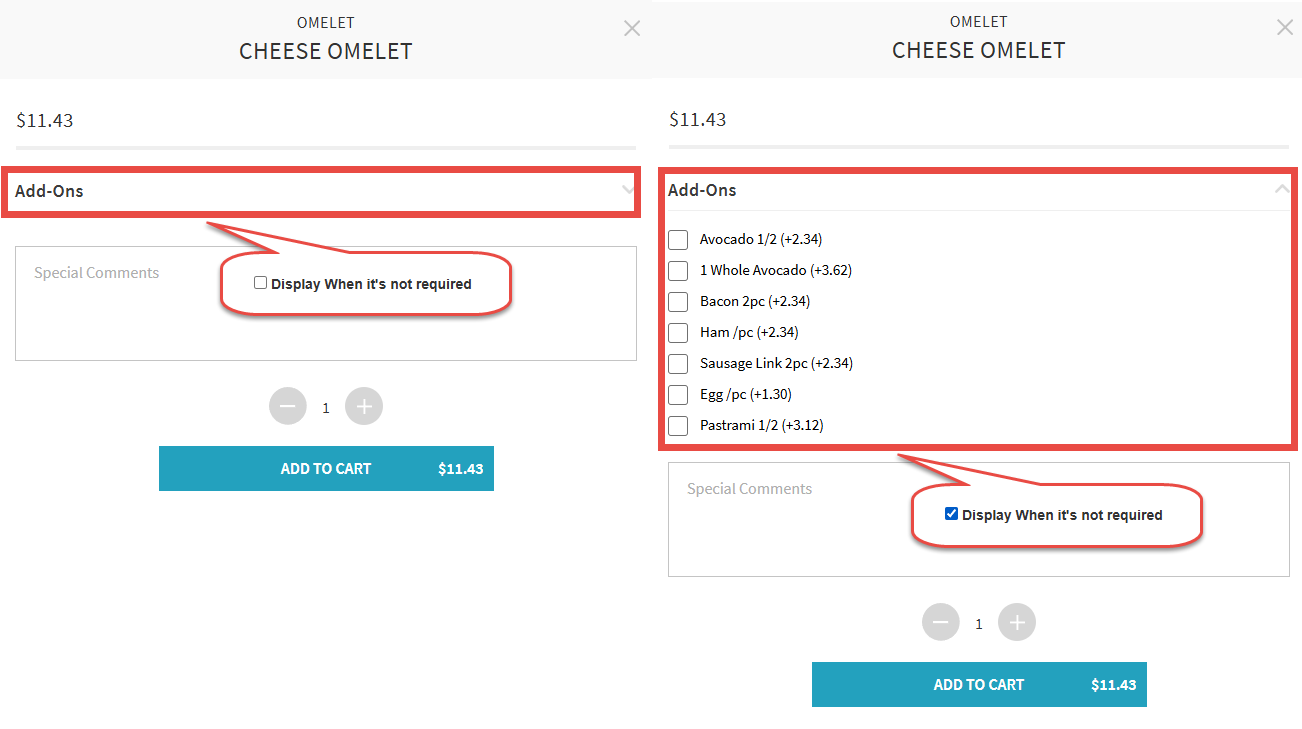
(5) Click Save to create the preference.
STEP 2: Create a Sub-Preference (Child)
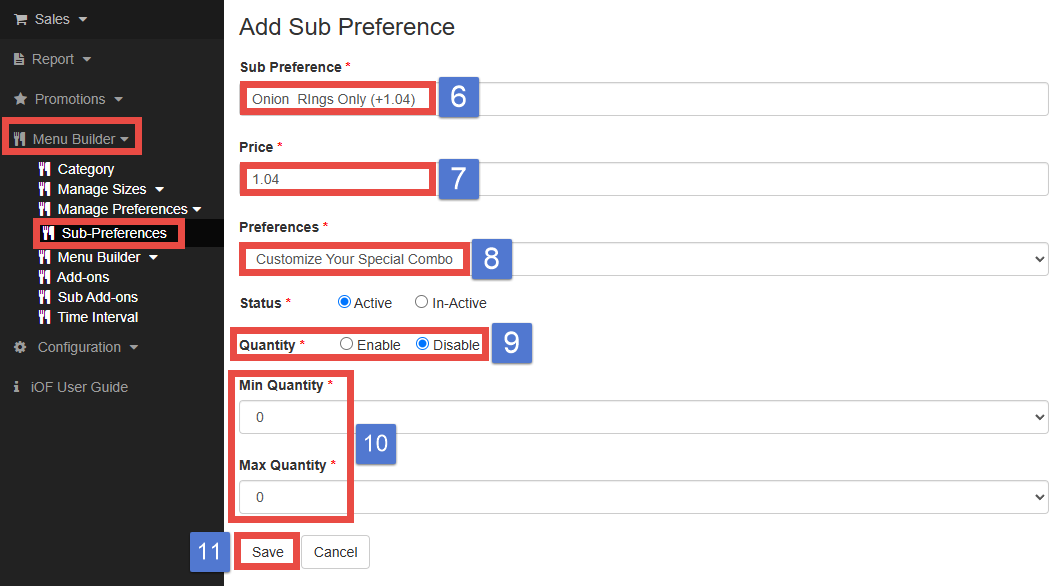
Navigate to Menu Builder → Sub-Preferences.
(6) Enter the Sub Preference Title
(7) If the price is free, enter 0.
(8) Find and select the correct Preference (Parent) that you created in Step 1.
(9) Enable Quantity: Allows customers to select more than one option.
Disabled Quantity: Limits selection to only one option. (See image below.)
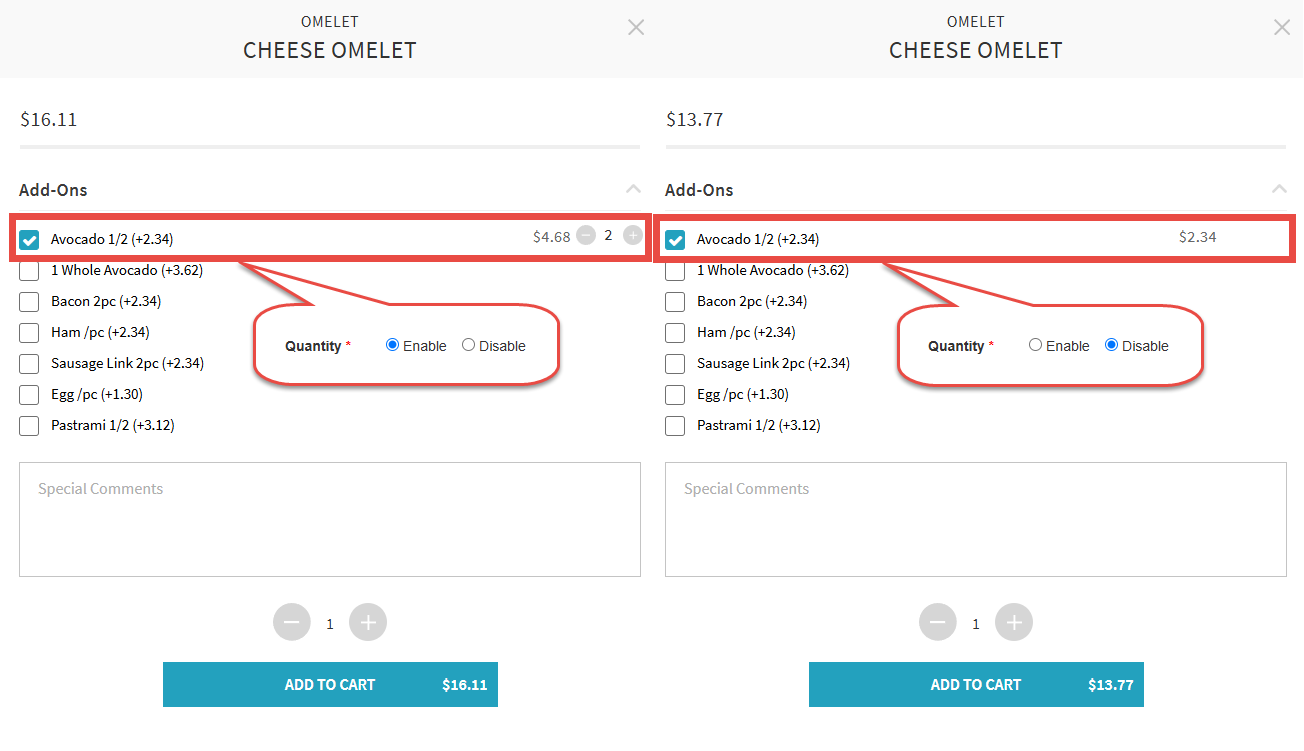
(10) If Enable Quantity is selected, specify the minimum and maximum quantities.
(11) Click Save to create the sub-preference.
STEP 3: Assign Preferences to Menu Items
Navigate to Menu Builder → View Items.
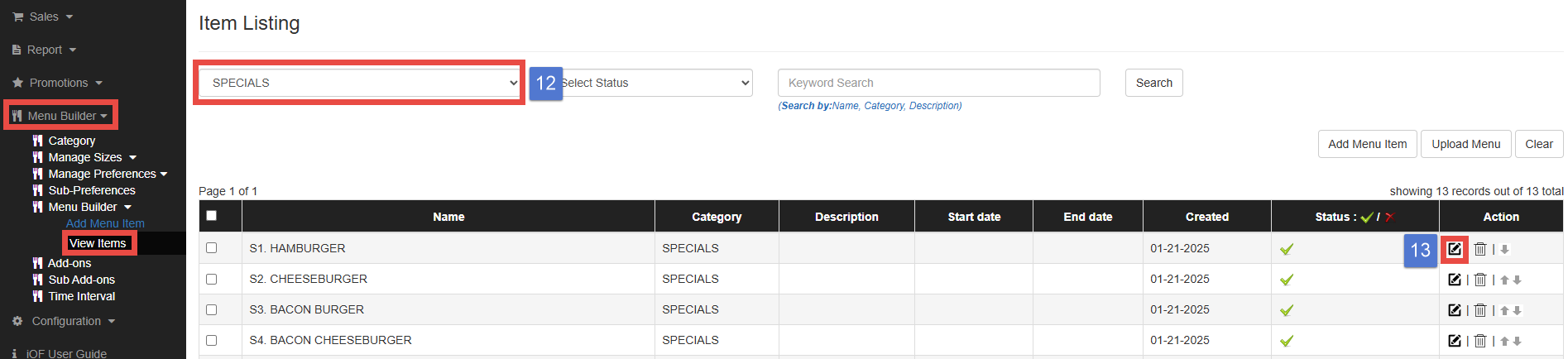
(12) Choose the appropriate category for the menu items that you want to add preference to.
(13) Find the menu items and click the edit button.
STEP 4
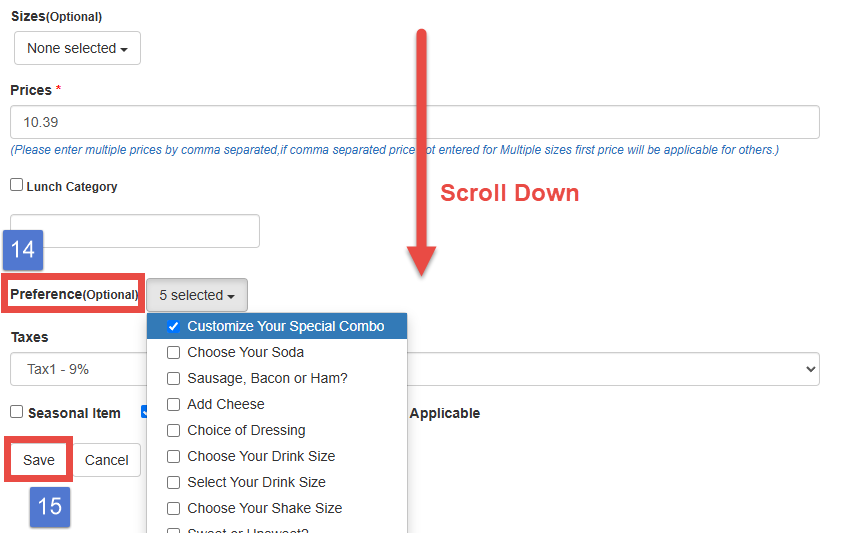
(14) Scroll down and find the Preference box, than select the Preference you created in advance.
(15) Click Save to apply the preference to the menu item.