
STEP 1
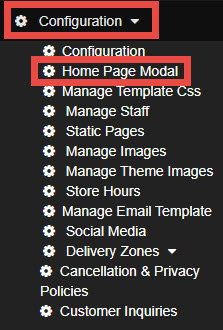
Go to Configuration and select Home Page Modal.
STEP 2
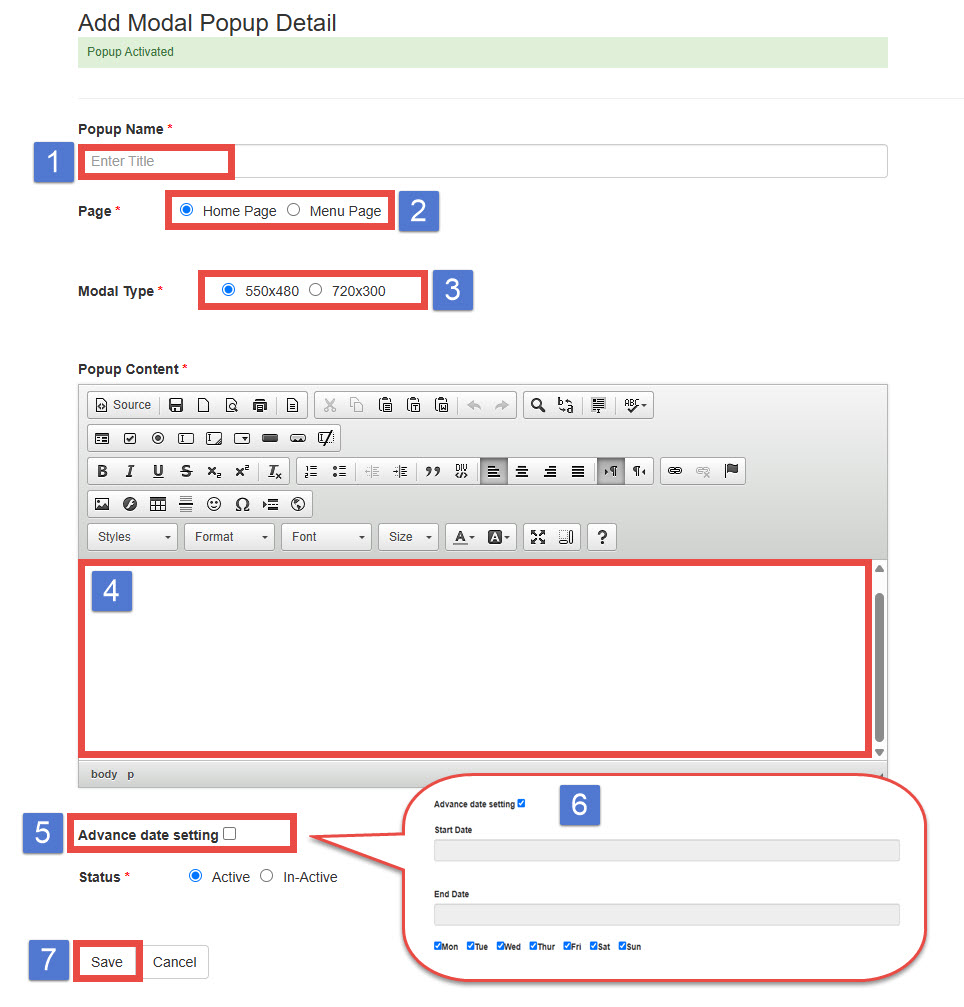
Fill out the popup Title (1).
Note: The title is only visible to the admin and is used to identify the popup in the admin popup list.
Customers will not see this title on the website.
STEP 3
Choose the location of the popup will appear on the screen (2).
STEP 4
Select the popup size (3).
STEP 5
Enter the popup contents (4). This is the message your customers will see when they visit your website.
STEP 6 (Optional)
Click on Advanced Date Settings (5) to set specific days and dates (6) for when the popup should appear.
STEP 7
Ensure the status of the modal is set to Active. You must toggle this setting to activate or deactivate the popup.
STEP 8
Click Save to apply your changes (7).
DETAILS
Only the popup with the highest priority will appear first on your website.
If multiple popups are active at the same time, the system will display the one with the highest priority based on the order in the admin list.
Below is an example for clarification:
Home Page Popup:
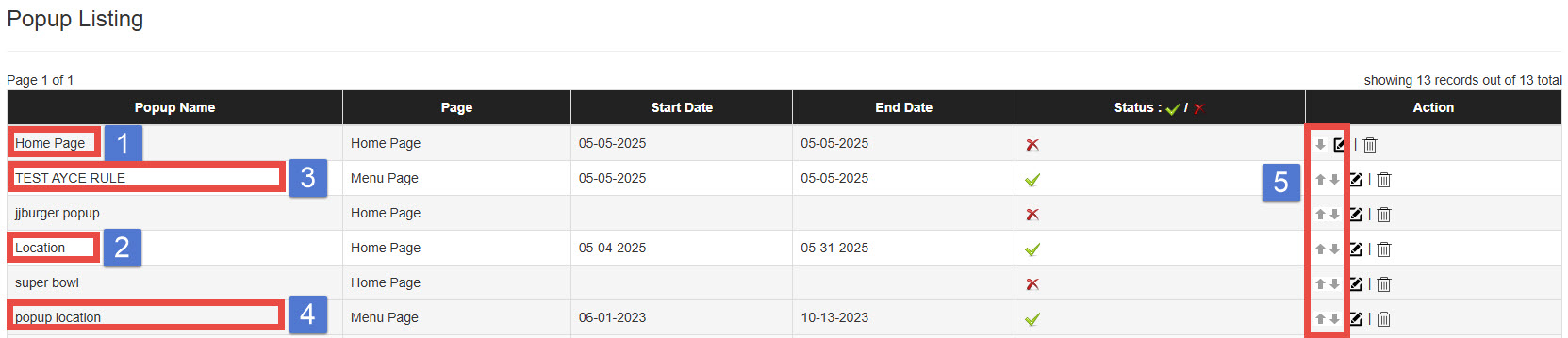
In the image, (1) is the popup that will appear on May 5, 2025 only.
Except May 5, 2025, (2) will automatically appear on the Home Page until May 31, 2025.
Menu Page Popup:
(3) is the popup set to show only on May 5, 2025.
Except May 5, 2025, (4) popup will automatically appear on your website continuously.
When you create a new popup, make sure to change the priority (5).