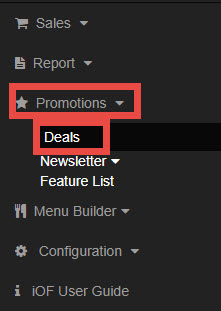
Go to Promotions, select Deals.
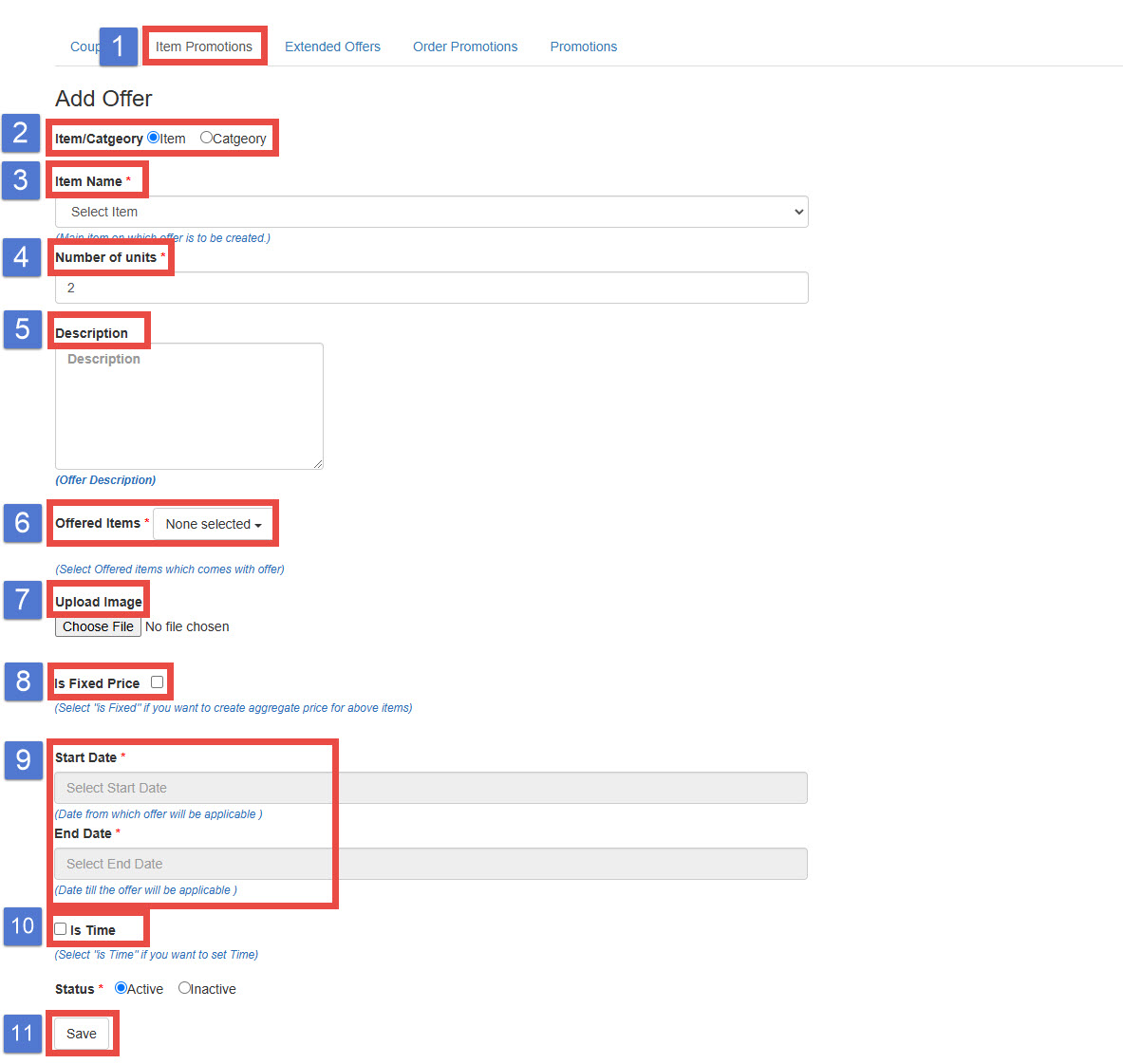
- Choose Item Promotions
- Item/Category: Choose whether the promotion will apply to an individual item or entire category.
- Item Name: Specify the item that needs to be purchased to trigger the promotion (the “if” factor).
- Number of units: Specify the quantity of the item that must be purchased to receive the promotion. For example, if 2 items are purchased, the promotion will apply.
- Description: Add a description of the offer. This will only be visible if the admin settings are configured to display promotions and deals on the website.
- Offered Items: Specify the promotional item that will be offered once the conditions are met. For example, if the specified item is purchased, the customer will receive the offered item at a discounted price.
- Upload Image: Optional. If the admin settings allow, you can upload an image that will appear alongside the promotion on the website.
- Is Fixed Price: Check this option if you want to set a fixed price for the promotional item, overriding the original price.
- For example, If Apple item is purchased, the customer will receive a promotional Orange item, offered, both at a [fixed price].
- Set the coupon active dates.
- Is Time: If the promotion is only valid during certain hours of the day, check this option and select the applicable time range.
12. Save